

Documentation Index
Fetch the complete documentation index at: https://specterops-enable-tls-feedback.mintlify.app/llms.txt
Use this file to discover all available pages before exploring further.

Purpose
This guide explains how to create a BloodHound Enterprise collector client. It is intended for Administrators who are deploying SharpHound Enterprise or AzureHound Enterprise for data collection. Collector clients connect your BloodHound Enterprise tenant to your collector applications. They provide the necessary authentication and configuration information for your SharpHound Enterprise or AzureHound Enterprise collector applications to securely upload collected data to your BloodHound Enterprise instance for processing and analysis. BloodHound Enterprise supports two types of collector clients:- SharpHound Enterprise - Collects data from Active Directory environments
- AzureHound Enterprise - Collects data from Entra ID environments
Prerequisites
- A BloodHound Enterprise
- Logged in as a user assigned a role authorized to create a collector client
See SharpHound Enterprise System Requirements or AzureHound Enterprise System Requirements for more information on the requirements for each collector type.
Process
This guide covers the required steps to create a collector client in your BloodHound Enterprise tenant. Optional configuration settings are also explained, but can be skipped during initial setup and configured later if necessary.AzureHound Enterprise
AzureHound collector clients use API token-based authentication. When creating an AzureHound collector client, you must save the generated token information and use it to configure the AzureHound collector application.Create the client
- On the right side of the page, click Create Client.
- Select Create AzureHound Client from the dropdown menu.
-
Complete the required fields:
Field Required Description Client Name Yes A descriptive name for the collector client (e.g., the name of the domain it collects from or system it runs on) Collection Schedule No Optional configuration options for scheduling data collection jobs 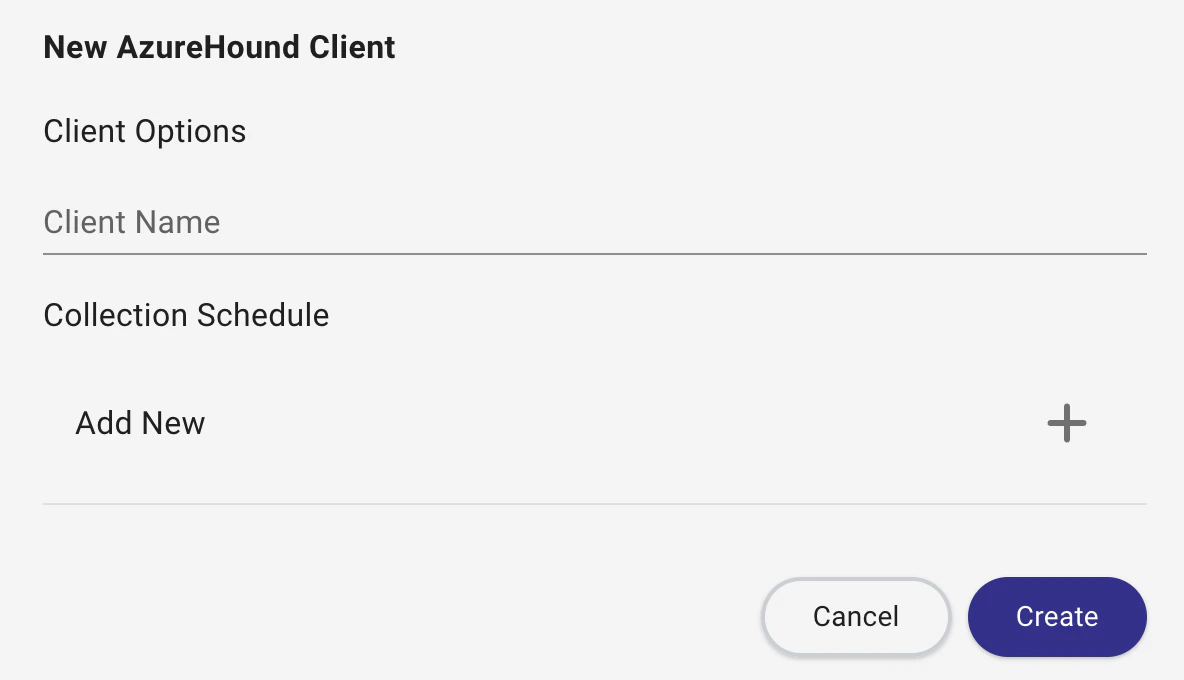
- Click Create.
Save the client token
A Client Token Info window will appear with authentication credentials. Copy and save the token information before closing.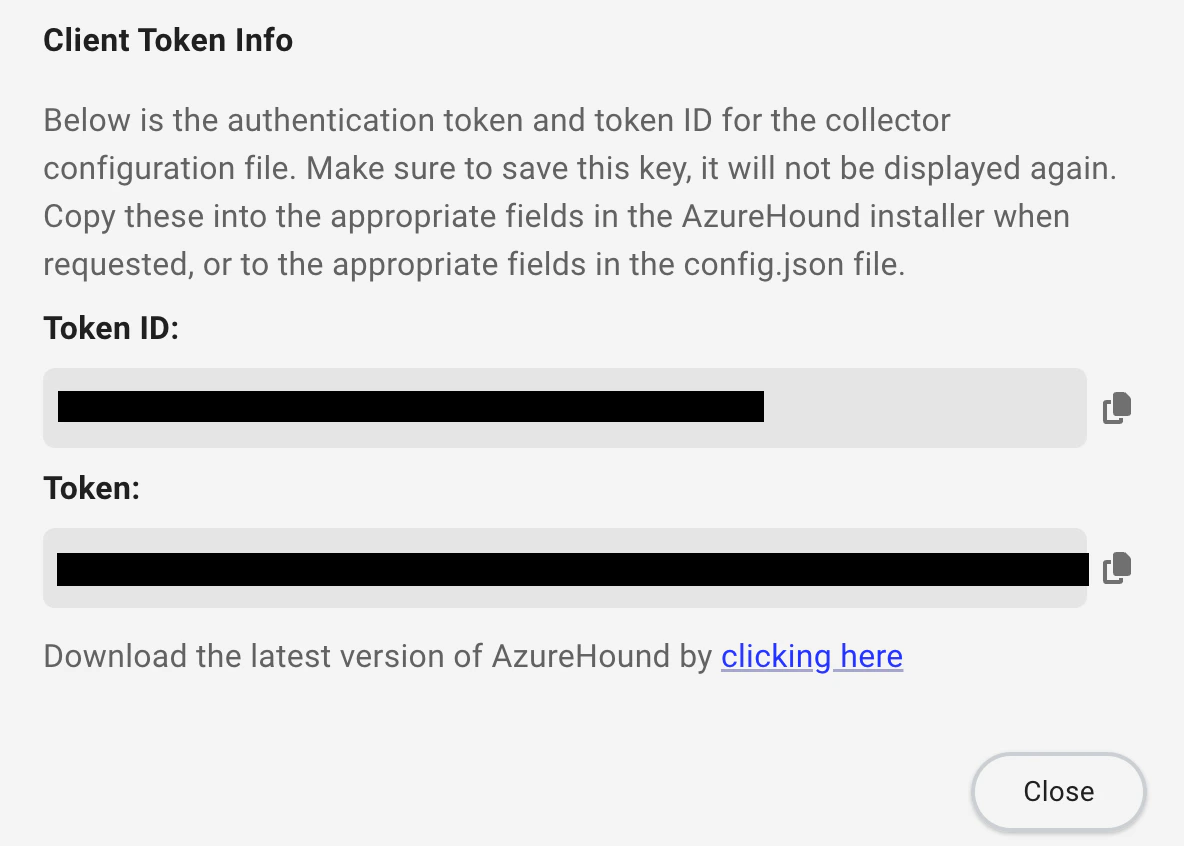
The token information is required to configure the AzureHound collector application.
SharpHound Enterprise
SharpHound Enterprise collector clients support both API token-based authentication and Integrated Windows Authentication (IWA) via Active Directory Federation Services (ADFS). When creating a SharpHound Enterprise collector client, you must select the authentication method and provide the required information based on that method. Be sure to save the generated token or configuration information and use it to configure the SharpHound Enterprise collector application.Create the client
- On the right side of the page, click Create Client.
- Select Create SharpHound Enterprise Client from the dropdown menu.
-
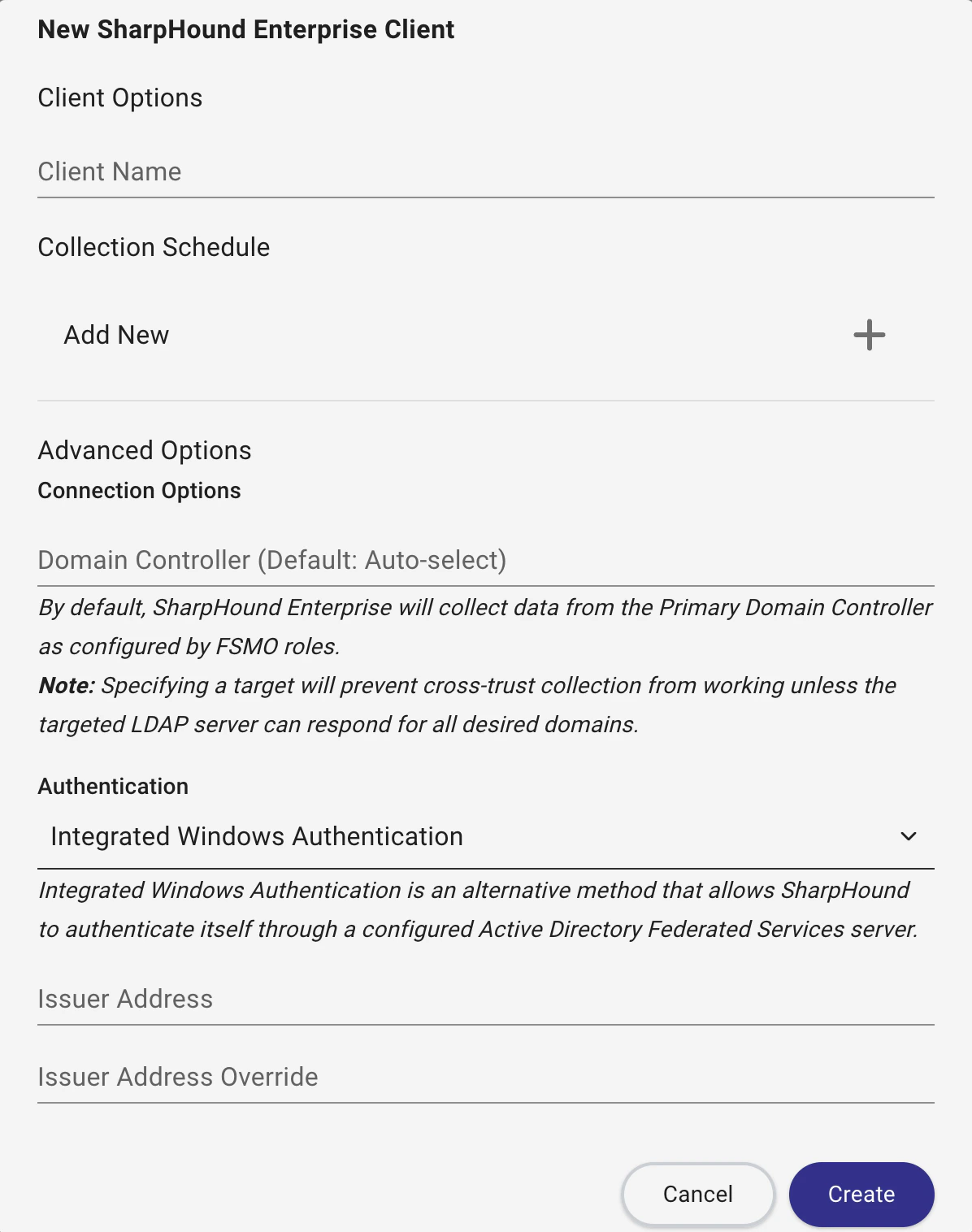
Complete the required fields:
Field Required Description Client Name Yes A descriptive name for the collector client (e.g., the name of the domain it collects from or system it runs on) Collection Schedule No Optional configuration options for scheduling data collection jobs Advanced Options No Optional domain controller targeting
By default, SharpHound Enterprise will collect data from the Primary Domain Controller as configured by FSMO roles
Specifying a target will prevent cross-trust collection from working unless the targeted LDAP server can respond for all desired domainsAuthentication Yes Authentication method the client will use: - BHE Authentication: Traditional API token-based authentication (default)
- Integrated Windows Authentication: Windows-based authentication via ADFS
Issuer ID Yes
(IWA only)The ADFS well-known endpoint URL, typically: https://adfs.example.com/.well-known/openid-configurationIssuer Address Override No
(IWA only)An optional override for the token issuer address if your ADFS configuration uses a different issuer URL for token validation - BHE Authentication
- Integrated Windows Authentication
The following screenshot shows the client creation form when BHE Authentication is selected.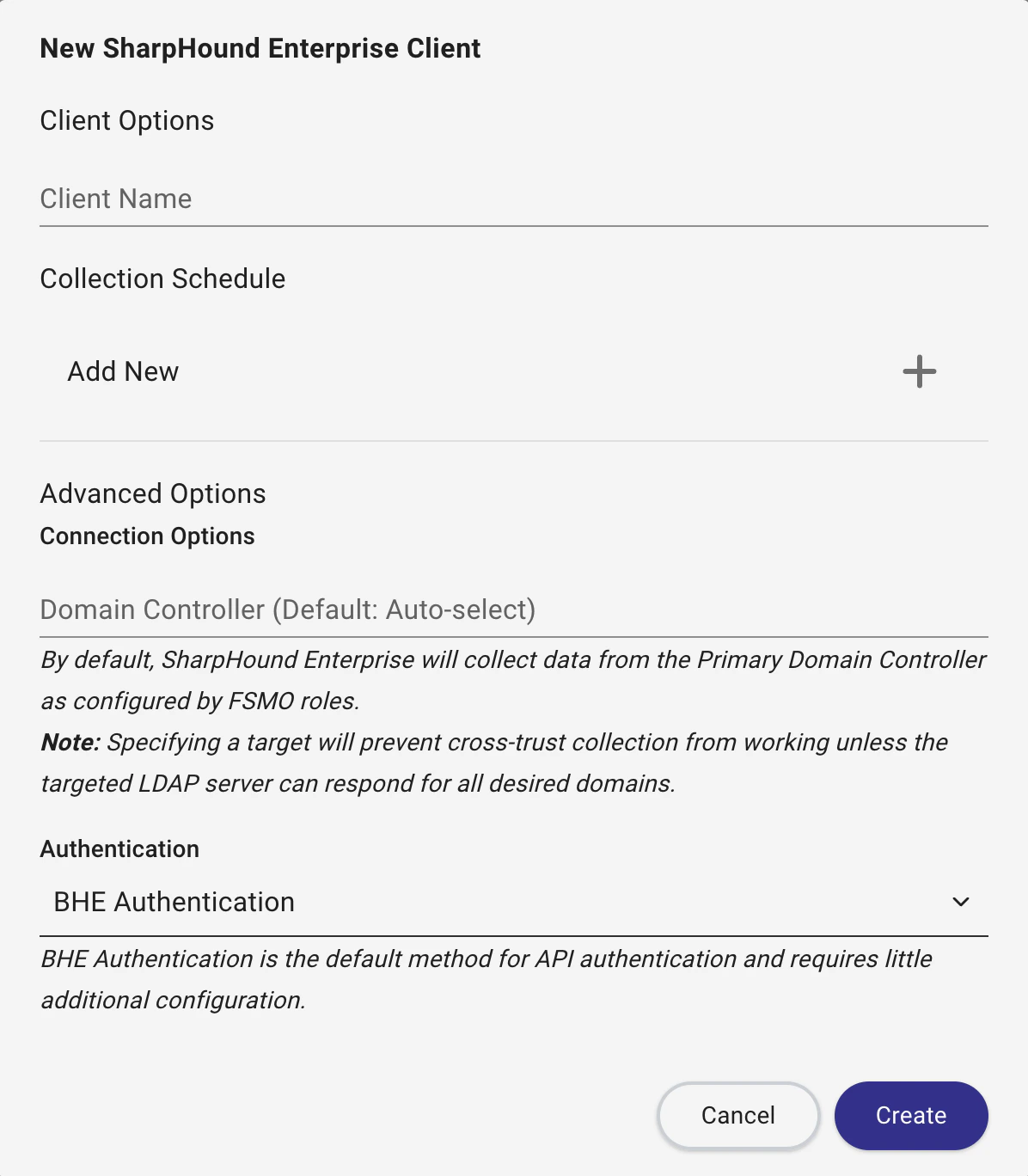
- Click Create.
Save the client token or configuration
A pop-up window will appear and display the client token (for BHE Authentication) or client ID information (for Integrated Windows Authentication). Follow the instructions in it before clicking Close.
Switching Authentication MethodsIf you are switching an existing SharpHound Enterprise collector client to a different authentication method, this step replaces the current credentials.
- Switching to Integrated Windows Authentication invalidates existing API tokens and requires you to update the
settings.jsonfile and remove theauth.jsonfile. - Switching to BHE Authentication generates a new token and requires you to update the
auth.jsonfile and disable IWA in thesettings.jsonfile.
- BHE Authentication
- Integrated Windows Authentication
A Client Token Info window will appear with authentication credentials. Copy and save the token information before closing.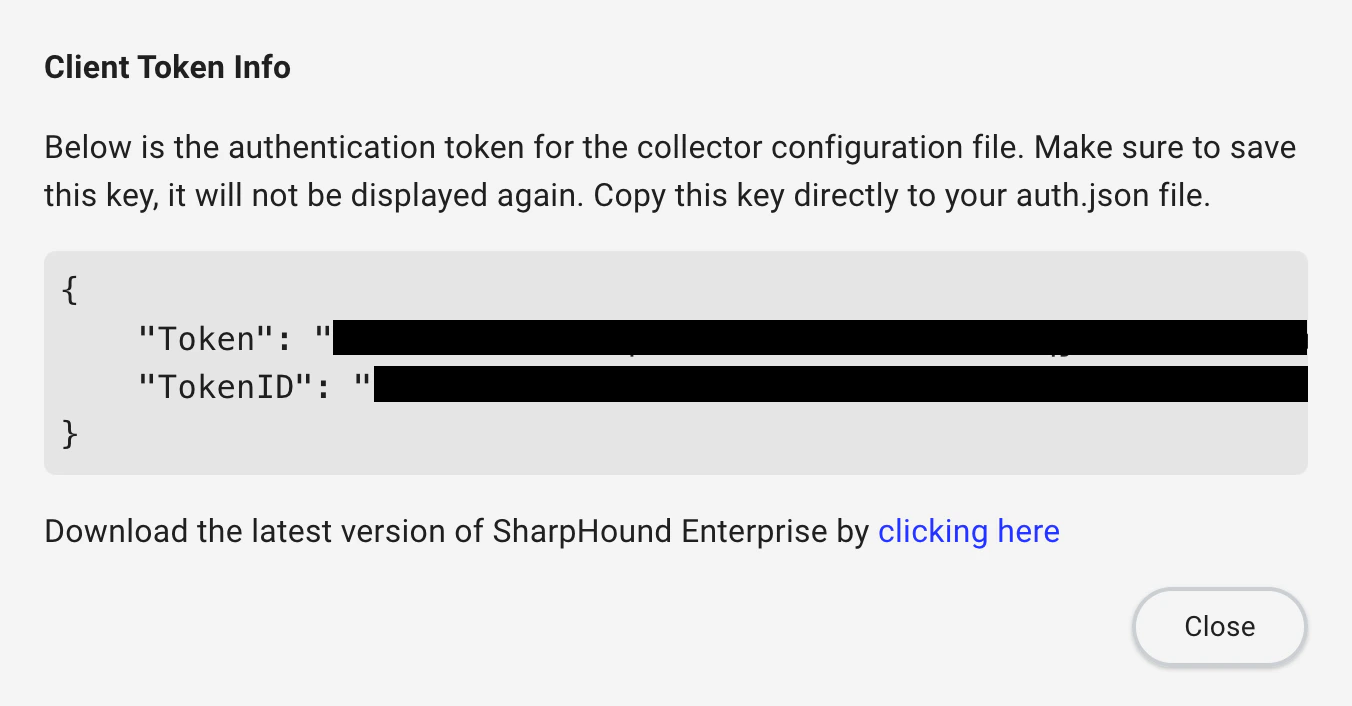
The token information is required to configure the SharpHound Enterprise collector application in the
auth.json file.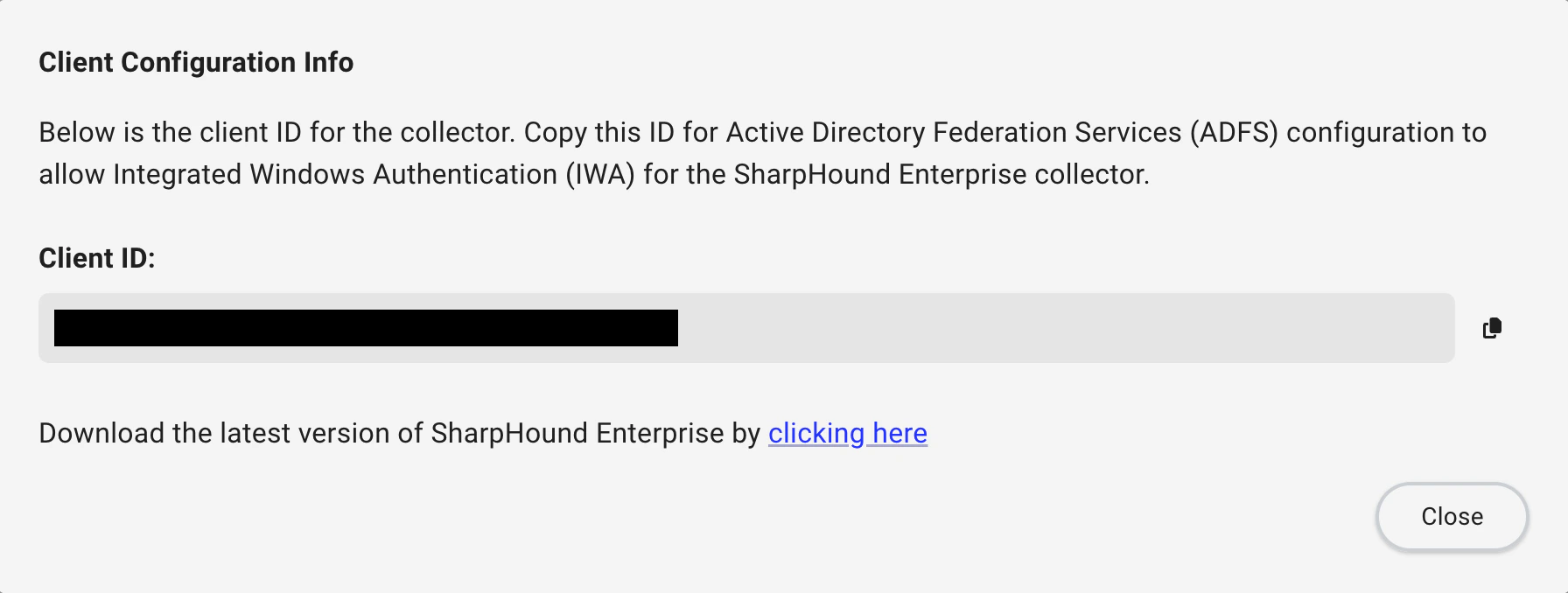
Outcome
BloodHound Enterprise displays collector clients in the table on the Manage Clients page with a Status of Unconfigured.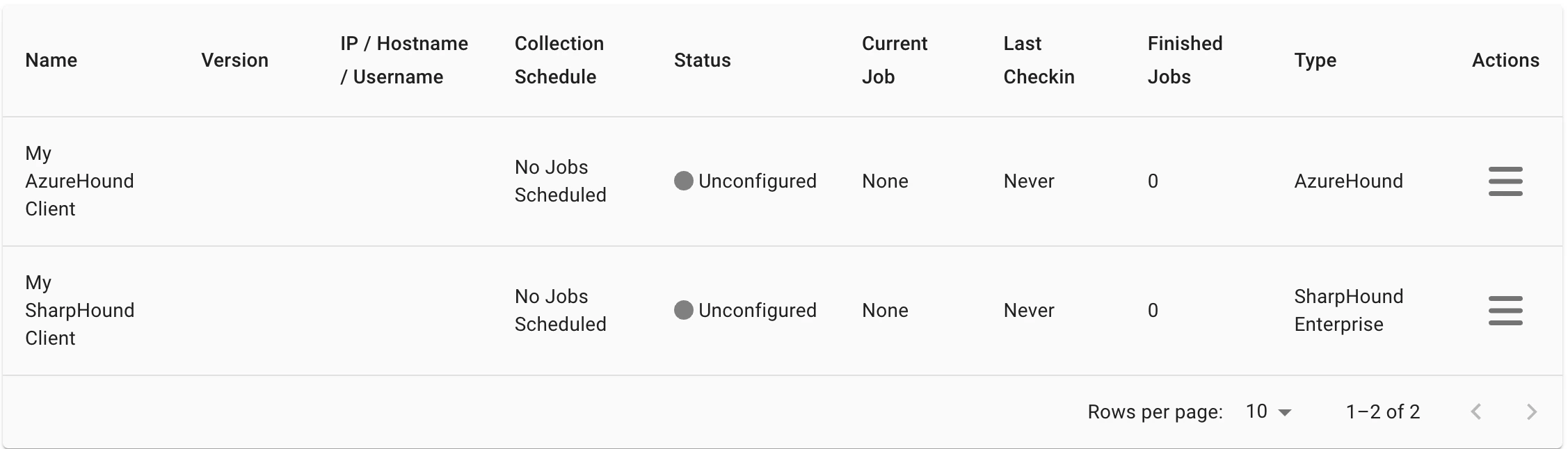
Next Steps
-
SharpHound Enterprise clients:
- BHE Authentication: Use the token information to configure the SharpHound Enterprise collector application in the
auth.jsonfile. - Integrated Windows Authentication: Follow the ADFS configuration guide to set up ADFS, then configure the SharpHound Enterprise collector application in the
settings.jsonfile.
- BHE Authentication: Use the token information to configure the SharpHound Enterprise collector application in the
-
AzureHound Enterprise clients:
- Use the token information to configure the AzureHound collector application.